

I often get asked by colleagues how I setup a customized right-click menu for my Desktop. Don't get me wrong, I still use the notebook that the company issues but I ask for limited administrative privileges to be able to customize the notebook to my working style as I like to access my often used software on the right-click menu. It is a quick access menu and you will see how it looks in a bit.
Other than this "menu", I also leave my desktop with very minimal contents, icons, or shortcuts. This makes access my Desktop quick and very responsive. If you feel like your computer is bogging down, try removing stuff from your Desktop (trust me, it goes a long way).
For you to have an idea what I'm talking about, here's a screenshot of my Desktop.
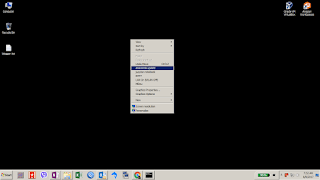
The question then is: How did I add several lines to the right-click menu? Good question, read on as I will outline how this gets done.
WARNING! This involves making changes to the registry and could potentially end up in disaster. Proceed at your own risk!
Now that you have ample warning, open the registry editor.. Head down to "HKEY_CLASSES_ROOT\Directory\Background\shell" or "HKCR\Directory\Background\shell". This requires Administrator privileges, so if you don't have it on your notebook, ask for it first. Otherwise, this will not work for you.
Right-click on "shell", and select "New" --> "Key". Name this key with what you want to appear on the right-click menu. In my case, I used the key "anaconda update" specifically for updating my anaconda3 install in my notebook.
Next, right-click on the newly created and key create another key. This time name it "command" (do not use any other name). On the data pane, fill up the "(Default)" field with the command used to run the created key. In my example above, commands specific to "anaconda update" -- "conda update --all --yes".
You should have something similar to the screenshot below. I already have several entries in my Desktop so the existing Keys on your registry might appear different. In my set-up, I also added another key to launch "jupyter notebook" with the same command among several additions.
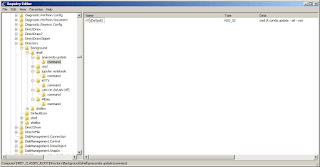
The change takes effect immediately, so check by right-clicking your Desktop and see the menu appear. If it doesn't appear, re-check the steps executed.
RELATED: TOO MANY USER/GDI objects are being used..
This setup has also helped me a lot in uncluttering my Desktop from icons/shortcuts that would slow it down. Not to mention, give it a very simple, clean look.
Other than this "menu", I also leave my desktop with very minimal contents, icons, or shortcuts. This makes access my Desktop quick and very responsive. If you feel like your computer is bogging down, try removing stuff from your Desktop (trust me, it goes a long way).
For you to have an idea what I'm talking about, here's a screenshot of my Desktop.

The question then is: How did I add several lines to the right-click menu? Good question, read on as I will outline how this gets done.
WARNING! This involves making changes to the registry and could potentially end up in disaster. Proceed at your own risk!
Now that you have ample warning, open the registry editor.. Head down to "HKEY_CLASSES_ROOT\Directory\Background\shell" or "HKCR\Directory\Background\shell". This requires Administrator privileges, so if you don't have it on your notebook, ask for it first. Otherwise, this will not work for you.
Right-click on "shell", and select "New" --> "Key". Name this key with what you want to appear on the right-click menu. In my case, I used the key "anaconda update" specifically for updating my anaconda3 install in my notebook.
Next, right-click on the newly created and key create another key. This time name it "command" (do not use any other name). On the data pane, fill up the "(Default)" field with the command used to run the created key. In my example above, commands specific to "anaconda update" -- "conda update --all --yes".
You should have something similar to the screenshot below. I already have several entries in my Desktop so the existing Keys on your registry might appear different. In my set-up, I also added another key to launch "jupyter notebook" with the same command among several additions.

The change takes effect immediately, so check by right-clicking your Desktop and see the menu appear. If it doesn't appear, re-check the steps executed.
RELATED: TOO MANY USER/GDI objects are being used..
This setup has also helped me a lot in uncluttering my Desktop from icons/shortcuts that would slow it down. Not to mention, give it a very simple, clean look.


