

If there is one thing I learned in Linux that makes life extremly easy, I would say it is the possibility (or ability) to maintain persistent terminal sessions. This tool comes in handy when working remote and working with servers in particular. Imagine if you are uploading a sosreport or uploading huge core dumps as supplement attachments for a support ticket, and your shift ends. Would you want to wait another couple of hours for the upload to finish? Or, would you want to have a persistent terminal session so that your uploads are thugging along while you drive home?
I'm quite sure the answer is obvious. Linux has this utility called "screen". Screen allows the user a persistent shell session, at the same time multiple tabs for the same connection. It also allows the user to disconnect and re-connect at will, which is really handly for remote users or if for some reason the network connection gets interrupted. Another benefit is for users to simultaneously connect to the same screen session.
This utility is not installed by default. In Ubuntu, to install simply run [sudo apt-get -y install screen].
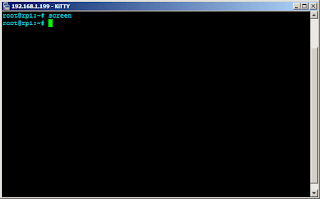
To run screen, simply run [screen]. You might notice that nothing much has changed upon execution, but running [screen -ls] shows a session is already running. This is how plain it looks (I scrolled it back 1 line just to show you I ran screen).
You can change this behaviour by making modifications to the screen startup configuration. It is a file named ".screenrc" that is placed in the home directory of the active user. This file does not exist by default and needs to be created by the user himself/herself.
I have created my own ".screenrc". It is available in github at this link: https://github.com/dillagr/dotfiles.
A few notes regarding the configuration. It alters the default behaviour of screen. The control command or escape command which is [CTRL]+[A] by default -- modified to [CTRL]+[G]. Meaning, any other hot-key for screen is preceded by a [CTRL]+[G] then [C] for example to create another tab (or create another window); [CTRL]+[G] then [D] to detach from screen.
Shown below is how it looks on my Raspberry PI. See any notable difference(s) compared to the previous screenshot?

The other thing that is most notable about this configuration is that you will see the number of tabs at the bottom, the hostname of the server at the lower left corner and the current active tab. This way it is really clear that the terminal is running an active screen session. Scrollback is set to 1024 lines. That way you can go back 1024 lines that are already off the screen. You may customize this as well.
RELATED: Install Adblock on Raspberry Pi via Pi-Hole
Having screen and a persistent terminal session is one of the best tools for a system administrator.. But as I will show you soon, it is not limited to administering servers. Stay tuned.
I'm quite sure the answer is obvious. Linux has this utility called "screen". Screen allows the user a persistent shell session, at the same time multiple tabs for the same connection. It also allows the user to disconnect and re-connect at will, which is really handly for remote users or if for some reason the network connection gets interrupted. Another benefit is for users to simultaneously connect to the same screen session.
This utility is not installed by default. In Ubuntu, to install simply run [sudo apt-get -y install screen].
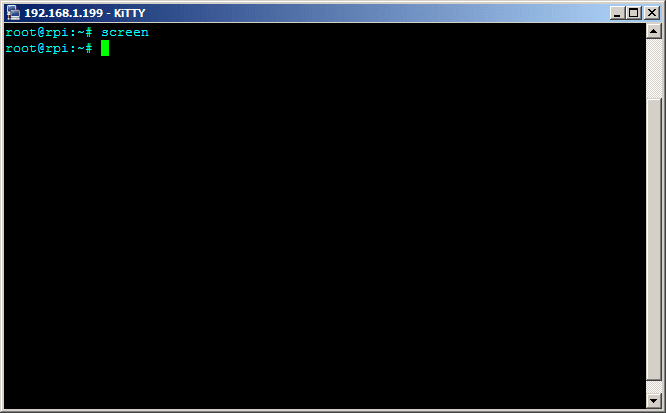
To run screen, simply run [screen]. You might notice that nothing much has changed upon execution, but running [screen -ls] shows a session is already running. This is how plain it looks (I scrolled it back 1 line just to show you I ran screen).
You can change this behaviour by making modifications to the screen startup configuration. It is a file named ".screenrc" that is placed in the home directory of the active user. This file does not exist by default and needs to be created by the user himself/herself.
I have created my own ".screenrc". It is available in github at this link: https://github.com/dillagr/dotfiles.
A few notes regarding the configuration. It alters the default behaviour of screen. The control command or escape command which is [CTRL]+[A] by default -- modified to [CTRL]+[G]. Meaning, any other hot-key for screen is preceded by a [CTRL]+[G] then [C] for example to create another tab (or create another window); [CTRL]+[G] then [D] to detach from screen.
Shown below is how it looks on my Raspberry PI. See any notable difference(s) compared to the previous screenshot?

The other thing that is most notable about this configuration is that you will see the number of tabs at the bottom, the hostname of the server at the lower left corner and the current active tab. This way it is really clear that the terminal is running an active screen session. Scrollback is set to 1024 lines. That way you can go back 1024 lines that are already off the screen. You may customize this as well.
RELATED: Install Adblock on Raspberry Pi via Pi-Hole
Having screen and a persistent terminal session is one of the best tools for a system administrator.. But as I will show you soon, it is not limited to administering servers. Stay tuned.


