Showing posts with label hardware. Show all posts

HOW-TO: Monitor Hard Drive Health

If there is one thing I know for sure as a system administrator -- it is disaster strikes when you least expect it. This is true for just about every aspect of the sysad job. But this is likewise very true for life outside the professional arena. Your computer can have a disaster when you least expect it. This is why it is important to monitor your own computer. And if monitoring is not enough, ensure that it alerts you as well.

I decided to post this article due to a recent experience that saved me from what could have been a potentially big headache. I started noticing my computer freezing at odd times when I'm in the middle of doing something. It irritated me a lot of times but I was just busy finishing up some work to really mind the problem. So I ended up ignoring it to focus on more important things that I need to finish.

Just last week my computer froze and it just simply will not respond for a while. The drive activity LED was flashing indicating a busy drive. I wasn't doing anything so initially, I suspected it to be a virus. Nothing suspicious was running on the task manager and it would happen from time to time -- frequent enough to warrant my attention this time.

I had Acronis Drive Monitor (download here) installed before. I simply stopped it from starting since some startup analyzer suggested I disable it. I decided to run it this time.

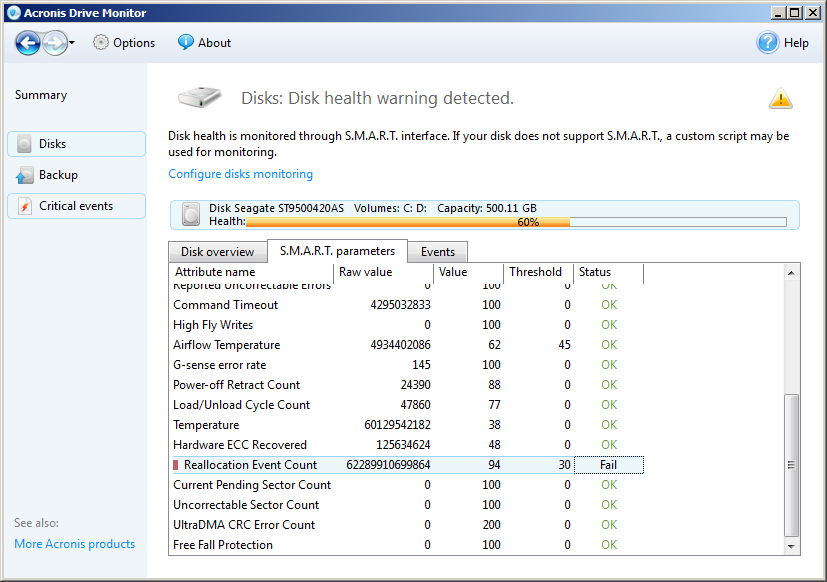
I was a bit surprised at what I saw as the drive monitor alerted that something was critical about the health of my hard drive. The screenshot below has the details.


As you can see from the screenshot, it rated my drive health at 60%. The S.M.A.R.T. attributes of my drive triggered the drive monitor alerting me of the criticality of the situation.

As checked, the "Reallocation Event Count" on my hard drive was through the roof. Further research on this attribute indicated my drive had a lot of bad sectors (thus the reallocation events). And it indicated the imminent failure of the hard drive. The same drive monitor has the S.M.A.R.T. parameters tab. See below.


As seen from the status, it indicated that my drive was failing. So without further ado, I commissioned another drive and copied the contents of the failing drive to it. The drive monitor saved me from a potentially difficult situation. I wasn't much concerned about losing the hard drive, but more of the data in it.

If you have not installed the Acronis Drive Monitor, download the software and install it on your computer. It is freely available from the Acronis website as indicated above. Just let it run in the background and it will alert you of potential problems before they happen. You will not regret using this software.

Share:

REVIEW: ARCTIC Z1 Desk Mount Monitor Arm

Cable clutter is a problem with the modern computer system. Everything that is wired into the system will contribute to the clutter -- be it network cables, monitor cables, power cable, mouse and keyboard, printer, scanner and everything else that gets hooked up to the computer. A very good way to minimize this is to organize them into sleeves but the downside is disconnecting one device will take up a lot of work. The other problem that complicates this is real estate. Too much equipment can both require and take up a lot of space.

Another clever way to organize is to put money and effort in it. Design a good system right from the start and do it right the first time. A very good example to this is the compudesk project which solves a lot of those headaches.

A simple method to work around the real estate problem is to deploy the appropriate space saving solution(s). One very simple and proven way to maximize workspace is the use of a monitor bracket or arm. And today we review the Arctic Z1 Monitor Arm. ARCTIC describes it as:
Z1 is a desk edge monitor mounting pole designed to maximize your workspace with total flexibility. The 3 stages articulation arm offers 360-degree adjustment of your monitor, thus providing ergonomic comfort at all times. This monitor arm is most welcome in the office and ideal for professionals.
-- taken from the ARCTIC Z1 product page

ARCTIC Z1 Desk Mount Monitor Arm

ARCTIC Z1 Desk Mount Monitor Arm

You can mount the Z1 in a variety of ways. Its pole can be clamped to the edge of the table, or bolted in place using the holes provided. Bolting it in place is more secure. In this review, I bolted the pole to the edge of my computer desk.

It is VESA compliant and could hold a wide range of monitor sizes (from 13" to the bigger 27"), thanks to its provisioned 75mm x 75mm and 100mm x 100mm holes. The bracket itself can support a monitor of up to 10kg/22lbs in weight. It is very sturdy and could hold my DELL E248WFP 24" Widescreen LCD monitor (which is about 15lbs) without problems.

ARCTIC Z1 Desk Mount Monitor Arm

ARCTIC Z1 Desk Mount Monitor Arm

The black color that ARCTIC sent made the bracket very conspicuous. It's like the flat screen is floating without support. And, since I also have an ergonomic keyboard I now have a wide workspace to put it in.

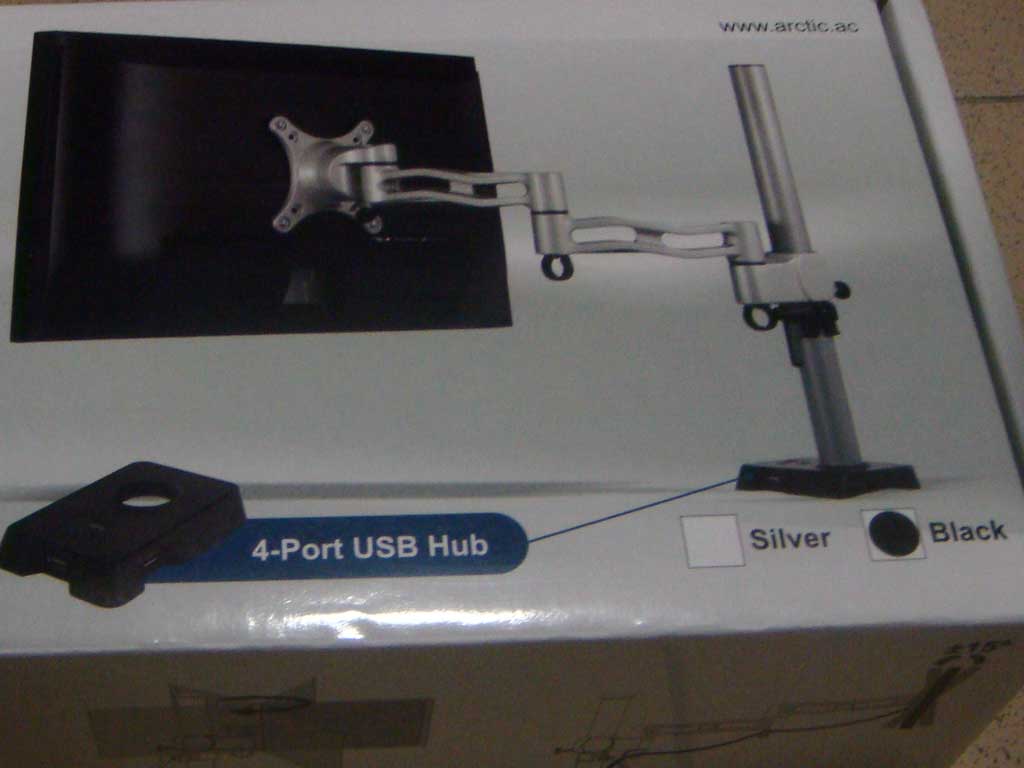
Since I have always had problems with cable clutter, I didn't install the additional USB ports that came with the package. But if you require a USB port that is readily reachable, the Z1 comes with a 4-port USB hub that is installed on the base of the pole.

The Z1 recovered my workspace, maximizing it, and giving me a lot of real estate to play with on my desktop. With the cable loops on the bracket itself, cable management is added helping solve cable clutter especially if moving or swivelling the monitor from time to time.

To those who want to maximize workspace and at the same time solve cable clutter the ARCTIC Z1 Desk Mount Monitor Arm is a recommended solution. If you have got two monitors, the Z2 will fit the bill. Like me, I need a Z2 to mount the other E248WFP.

Our gratitude to ARCTIC for sending a Z1 Monitor Arm for review. The ARCTIC Z1 will definitely pimp your rig!

Share:

REVIEW: Arctic Cooling Freezer PRO13 CO

I recently received a brown box which courier FedEx brought. I opened it and a brand new heatsink Arctic Cooling Freezer PRO13 CO was inside the box for review.

Here is a brief rundown of the specifications of the Arctic Cooling Freezer PRO13 CO:
Heatsink Material : Aluminum fins x 47
Thickness of fins : 0.5 mm
No. of Heatpipes : 4
Fan (mm): 120mm x 1
           50mm x 1
Rated Fan Speed : 120mm: 300 - 1350 RPM
                  50mm: 700 - 2700 RPM
Airflow : 49.7 CFM / 96.8 m³/h
Cooling Capacity (Watts) : 300
Noise Level (Sone) : 0.4
Bearing : Dual Ball Bearing
Dimensions (Product) : 134L x 96W x 159H mm
Dimensions (Packaging) : 137L x 99W x 173H mm
Limited Warranty : 6 years
Product Net Weight : 0.893 kg
Gross Weight : 1.6 kg

A big change to the heatsink packaging is notable. What used to be black boxes bearing the Arctic Cooling logo was the usual packaging. For Freezer PRO13 CO, it is now a clear blister pack that displays the heatsink and fan (HSF).

Arctic Cooling Freezer PRO13 CO

Arctic Cooling Freezer PRO13 CO

Opening the package is quite easy. It is packed with mounting brackets, push pins and mounting screws. It also includes the instruction manual.

Below is a close-up of the HSF with its 9-blade 1350RPM fan. 120mm fans offer big airflow without the painful sound piercing your ears. At 1350rpm, that is what you'll expect on the Freezer PRO13 CO.

Arctic Cooling Freezer PRO13 CO

Aside from the 120mm fan, the Freezer PRO13 CO also comes with a 50mm radial fan on the bottom of the heatsink. This patented "Cross Blow" technology at the base of the cooler also cools the surrounding areas of the heatsink.

Arctic Cooling Freezer PRO13 CO

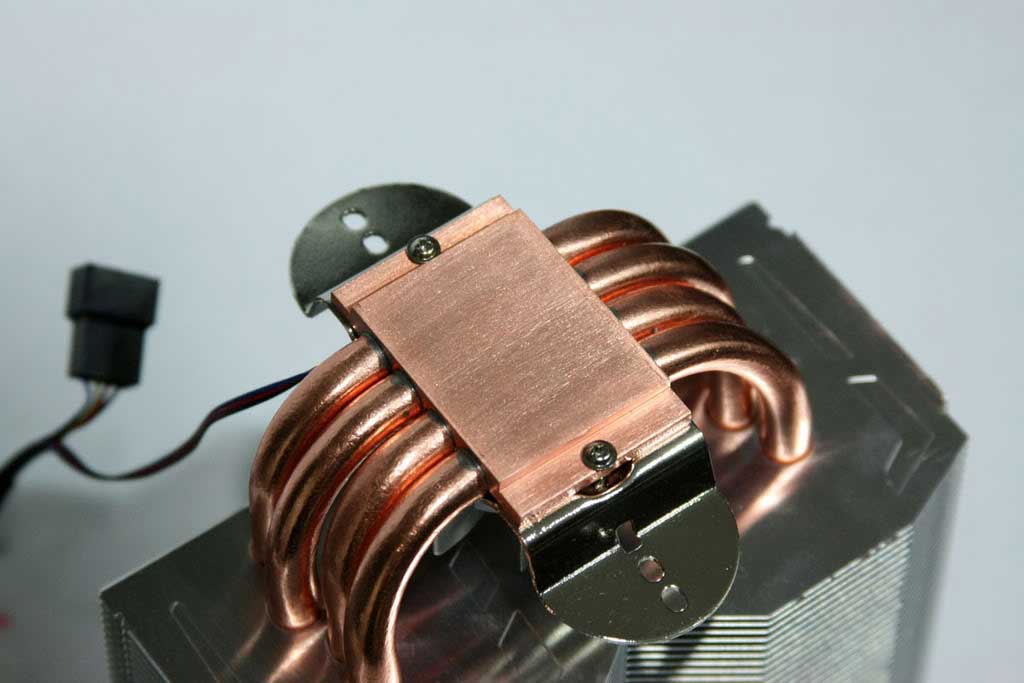
We removed the fans to take a closer look at the heatsink. Below you can see the heatsink and its base.

Arctic Cooling Freezer PRO13 CO

Arctic Cooling Freezer PRO13 CO

A heatsink this heavy (893g) should come with a backplane and stronger mounting brackets. However, the push pins hold the Freezer PRO13 CO without problems. It also doesn't give any mounting problems with surrounding components, like tall memory modules or the video card. The Gigabyte X58XP-UD5 has a tight fit on the CPU and memory area but the Freezer PRO13 CO fits without problems.

Arctic Cooling Freezer PRO13 CO

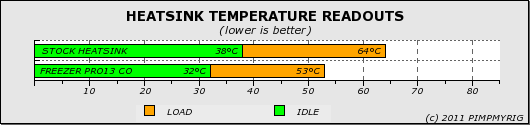
In the end, everything is all about the heatsink performance and here is how it fared.

Arctic Cooling Freezer PRO13 CO

Compared to the stock intel heatsink, the Freezer PRO13 CO is 6°C cooler at idle. This gap widens to 11°C at load. What I'd like to see is an option to switch the fan to a bit more than 1350 rpm especially for overclocking purposes. But with this performance, the Freezer PRO13 CO will not disappoint. If silence is your preference this is the heatsink for you.

Appreciation goes to Arctic Cooling for sending us a sample for review. Also, to my good friend Xavier Zulueta for reviewing the Arctic Cooling Freezer PRO13 CO.

Share:

REVIEW: Western Digital WD6402AAEX Black Performance

There seems to be three (3) existing Western Digital 640GB Caviar Black drives -- the current WD6402AAEX, the WD6401AALS, and the WD6400AAKS. The only available ones in the market are the WD6402AAEX and the WD6401AALS. The oldest WD6400AAKS seems to have been discontinued.

The WD6402AAEX has a price premium compared to its sibling WD6401AALS. And we previously reviewed the WD6401AALS and found the results to be a little disappointing. Although the real world performance should not be impacted much, it is still a bit dismal. You would expect a bit more from the dual processor technology that Western Digital introduced starting with the WD6401AALS. Benchmarks and reviews are influential in consumers buying decisions.

So here we are with the WD6402AAEX. Let's see if the trend is broken by this drive. It has the same spec as the WD6401AALS only that it has double the cache at 64MB and has the third generation SATA 6GB/s technology.

Western Digital WD6402AAEX Black Performance

It seems Western Digital did it right with the WD6402AAEX. From synthetic benchmark of HD Tune above, it is bounds and leaps faster than the WD6401AALS. Seems the cache plays a big impact on the drive. Doubling the cache has a very profound effect on performance.

Thanks to its new generation controller, the burst speed of the drive broke the SATA 3GB/s speed (theoretically 150MB/s). HD tune measured burst speed at 153MB/s transfer speed.

On average, the WD6402AAEX is faster by more than 20MB/s than the WD6401AALS. Now that's performance!

The WD6402AAEX impressed us a lot that we bought another drive and made a RAID0 (stripe). Here's how that 2-disk WD6402AAEX stripe performed.

Western Digital WD6402AAEX Black Performance

It seems the 640GB Caviar Black is cache hungry. Not much difference on the areal density between these drives, so it must be the cache. And as it seems, the cache hit it big time. I wonder then if mainstream desktop drives will ever be given a generous 128MB of cache.

Acknowledgments, again, to my good friend Xavier Zulueta of OCXPH for testing the WD6402AAEX for me.

Share:

REVIEW: Western Digital WD6401AALS Black Performance

Technology has taken the fast lane, even in the computing world -- more cores, more cache, more pinouts. But nothing seems to have changed much in the storage arena. And this is the bottleneck of performance. Today we test the Western Digital WD640AALS Caviar Black. It seems to be a beefed-up version of its sibling the WD6400AAKS Caviar Black.

While both are 640GB in usable size, platter areal density has improved -- the WD6400AAKS has 3 platters while the WD6401AALS has 2; and in terms of cache WD6401AALS has double that of WD6400AAKS at 32MB. On paper we see that the WD6401AALS has the advantages over the WD6400AAKS. But with those improvements, how much difference does it make? Or did we make a wrong presumption altogether?

Just like before, we ran HD Tune to test out the performance.

Western Digital WD6401AALS Black Performance

We were surprised by the results. The WD6401AALS results is slower than that of the WD6400AAKS. We didn't see the impact of added cache and increased areal density here.

Other variables could also play big factors here. The rig used to test the WD6401AALS is a quad-core Q9550, while on the WD6400AAKS its a dual-core E6600 Conroe. Also the versions of the software could be a factor. But still the lower results for the WD6401AALS came as a surprise.

A few questions come out of this test, is the 32MB cache equipped with slower memory chips? Is the PRO version of HD Tune benchmarking disks better than the free version? Does the cache memory chip speed influence hard drive speed that much? Is it the firmware perhaps? These questions we will find an answer for in future reviews.

I could no longer test the WD6401AALS with the old set-up as I gave that rig away after an upgrade a long time ago.. And I could no longer get my hands on another WD6400AAKS for a thorough comparison. Regardless of the outcome, I'd still recommend going for WD6401AALS. This drive will pimp your rig!

Acknowledgments, again, to my good friend Xavier Zulueta of OCXPH for testing the WD6401AALS for me.

Share:

TIP: Building a Budget Computer System

These days technology moves so fast that in what seemed like yesterday your electronic gadgets are obsolete. This is true in just about every area of the electronics industry. It is a very expensive hobby to move along with the current technological trend.

You might consider selling old stuff but would hesitate in doing so given their current market value -- just a pittance of what they're previously worth. The same fact is true for computer systems and its components.

I know you would agree that waiting for the current generation of processors to become obsolete before upgrading your system brings the best bang for the buck. Upgrades done this way are cheaper, cost effective and torture tested, not to mention thoroughly reviewed. It's like buying an entertainment system, evaluate and audition them first before making a prudent decision.

It has been a while since we last gave an advise on hardware picks. This buyer's guide has taken into foremost consideration a constrained budget but has the prime target on bang for the buck upgrade worthiness. The platform of choice is the LGA 775. The LGA 775 family still can cut it and good news for us who have waited for a while, the processors are dirt cheap and the platform is very mature.

PROCESSOR. Intel has revamped the E6600 (our budget processor of choice). It is now clocked at 3.06GHz (from the previous Core2Duo 2.4GHz Conroe). Transistor size has gone down from 65nm to 45nm which results to savings in power consumption.

The only downside to it is, the Conroe's 4MB cache was halved to 2MB in Wolfdale. However, according to this website pcgameshardware.de (content published is in German), Wolfdale processors are 10-15% faster than Conroe at the same clock speed. So you can expect the E6600 Wolfdale to be faster than the previous generation E6600.

E6600 Wolfdale

The Intel E6600 Wolfdale is currently priced at around PhP3,100 (US$69). Now that is a very sweet upgrade.

MOTHERBOARD. LGA775 is old. Yes, it is but LGA775 platform is not dead yet. What's sweet about LGA775 is that, there are chipsets for it that use DDR3 to feed the bandwidth hungry processor.

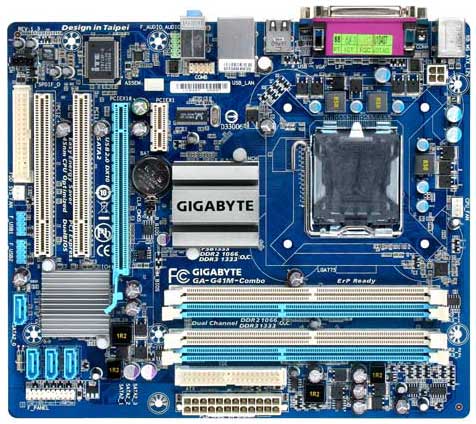
Our choice motherboard for our budget bang for the buck system is the Gigabyte GA-G41M Combo. Outright you can see why we chose this motherboard. It supports both DDR2 and DDR3 memory modules -- up to 8GB DDR2 or 8GB of DDR3 (simultaneous use of both memory types not supported). It comes in a micro ATX form factor.

Gigabyte GA-G41M Combo

This motherboard is designed and built very well. The processor socket is free from tall components and will fit a wide variety of third party heatsinks, if needed. Capacitors put into it are all metal electrolytic types. These type of capacitors are tougher, and ensures that the motherboard will last longer. Overall I would not hesitate to buy this board for a budget set-up.

It has dual-bios, gigabit ethernet, 8 USB2.0 ports and SATA 3GB interface. If planning on upgrading to a powerful graphics card in the future, the GA-G41M features a full 16X PCI-E slot. And add to it high definition audio from the VIA VT1708S codec, among its features.

A market price of PhP2,700 (US$60) is not bad either. A well built motherboard for that price is almost a steal.

MISCELLANEOUS. The recommended memory for this build is 2x2GB DDR3-1600 (brand new sells at PhP2,650). A part of that memory can be allocated to the on-board GMAX4500 graphics of the G41 chipset to keep the budget at minimum. If you already have DDR2 modules from another computer that can be utilized on the GA-G41M, further keeping the budget from ballooning.

On the storage, I would recommend getting a 1TB 7200rpm drive. The cost difference between a 640GB drive and a 1TB drive is very minimal. While gunning for a 2TB drive is too costly for a budget set-up. A 1TB drive is just at the sweet spot. If you already have a spare hard drive, you can use it.

For boot drives, avoid skimping and using "green" drives. Performance will really degrade when using those for the operating system.

So there you go folks, if you're planning to build a computer system (or perhaps an upgrade) with minimal costs but want good solid performance this is my recommended bill.

Share:

Subscribe for Latest Update

Popular Posts

Post Labels

100gb (1) acceleration (1) acrobat (1) adblock (1) advanced (1) ahci (1) airdrop (2) aix (14) angry birds (1) article (21) aster (1) audiodg.exe (1) automatic (2) autorun.inf (1) bartpe (1) battery (2) bigboss (1) binance (1) biometrics (1) bitcoin (3) blackberry (1) book (1) boot-repair (2) calendar (1) ccleaner (3) chrome (5) cloud (1) cluster (1) compatibility (3) CPAN (1) crypto (3) cydia (1) data (3) ddos (1) disable (1) discount (1) DLNA (1) dmidecode (1) dns (7) dracut (1) driver (1) error (10) esxi5 (2) excel (1) facebook (1) faq (36) faucet (1) firefox (17) firewall (2) flash (5) free (3) fun (1) gadgets (4) games (1) garmin (5) gmail (3) google (4) google+ (2) gps (5) grub (2) guide (1) hardware (6) how (1) how-to (45) huawei (1) icloud (1) info (4) iphone (7) IPMP (2) IPV6 (1) iscsi (1) jailbreak (1) java (3) kodi (1) linux (28) locate (1) lshw (1) luci (1) mafia wars (1) malware (1) mapsource (1) memory (2) mikrotik (5) missing (1) mods (10) mouse (1) multipath (1) multitasking (1) NAT (1) netapp (1) nouveau (1) nvidia (1) osmc (1) outlook (2) p2v (2) patch (1) performance (19) perl (1) philippines (1) php (1) pimp-my-rig (9) pldthomedsl (1) plugin (1) popcorn hour (10) power shell (1) process (1) proxy (2) pyspark (1) python (13) qos (1) raspberry pi (7) readyboost (2) reboot (2) recall (1) recovery mode (1) registry (2) rename (1) repository (1) rescue mode (1) review (15) right-click (1) RSS (2) s3cmd (1) salary (1) sanity check (1) security (15) sendmail (1) sickgear (3) software (10) solaris (17) squid (3) SSD (3) SSH (9) swap (1) tip (4) tips (42) top list (3) torrent (5) transmission (1) treewalk (2) tunnel (1) tweak (4) tweaks (41) ubuntu (4) udemy (6) unknown device (1) updates (12) upgrade (1) usb (12) utf8 (1) utility (2) V2V (1) virtual machine (4) VirtualBox (1) vmware (14) vsphere (1) wannacry (1) wifi (4) windows (54) winpe (2) xymon (1) yum (1) zombie (1)

RANDOM POSTS