Showing posts with label popcorn hour. Show all posts

INFO: Sickbeard Torrent Fork on PCH-C200 (Update)

It has been a while since I last composed an article in this blog. I have been busy planning, travelling and implementing infrastructure changes in my secular job. Time seems to have flown quite fast.

Regardless, I have had a few hours to myself and decided to tinker with my aging yet still functional Popcorn Hour C-200. I can't believe it has been in service for over ~5 years. The mods I did on the original heatsink really paid off.

If you have noticed, the development on the "bricky" fork of Sickbeard has discontinued and its git repo has been taken down. Time to update the sickbeard application on my C-200. I still prefer to use a torrent fork of the original code.

The previously written article on the sickbeard "bricky" fork still applies. However, a few tweaks are needed.

The initial steps to follow are the same:

[1] Open a terminal connection via KiTTY or another utility. Browse the directory /share/Apps/sickbeard. All the other steps below will discuss about changes to files and directories relative to this path.

[2] Remove the directory .git. Do this so the bricky fork will not conflict with the original midgetspy version of sickbeard. I also removed the file .gitignore but this seems irrelevant. You may opt to remove it in this step.

[3] On the same directory /share/Apps/sickbeard, is the file setup.sh. Look for the line:
git clone git://github.com/midgetspy/Sick-Beard.git SB
.. change it to this line:
git clone git://github.com/junalmeida/Sick-Beard.git SB

(The rest of the procedure is similar and I still included them below.)

[4] Remove the directory autoProcessTV under /share/Apps/sickbeard. If you don't want to remove it, you may choose to rename it instead. Any arbitrary name aside from the original name will do.

[5] Execute setup.sh on the command line. Either of these commands will work:
/share/Apps/sickbeard/setup.sh install
.. or
cd /share/Apps/sickbeard; ./setup.sh install

[6] Once the git clone is complete, run this:
/share/Apps/AppInit/appinit.cgi start sickbeard

The end result was not as I expected it to be. What I thought was a seamless update resulted in errors. The error is in the screenshot below.
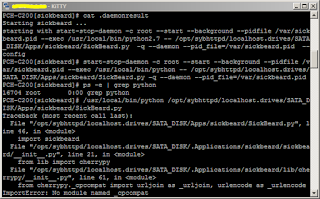
ImportError: No module named _cpcompat

ImportError: No module named _cpcompat

As it turns out, the old directory where sickbeard was installed contained a folder named "cherrypy" that comes in conflict with the version the current version of sickbeard. The solution is to remove the "cherrypy" folder and the errors go away. This is the only other step to add.

Those who still have a working C-200 will enjoy this new version of the torrent fork of sickbeard.

Share:

HOW-TO: Migrate Sickbeard to its Bricky Fork

The demise and take down of most Usenet premium providers left most of its followers with lesser and lesser options by the day. Not only its followers feel the grunt as a result, but its service dependent software as well. One of the end services I use myself is Sickbeard.

Sickbeard is my choice in automated download of TV series that I follow and watch. The best feature is the automatic download of episodes that you program it to automatigically download for you. Another neat feature is it notifies you of this download through your PC, phone or twitter (and other social media) services. But Sickbeard relies heavily on Usenet as it has limited torrent support.

Due to the above limitation, it forked to its bricky counterpart -- Sickbeard with better torrent support. The screenshot below is for the original version of Sickbeard.


I have a Popcorn Hour C-200 (touted as one of the best media players out in the market during its time). The outstanding feature of this media player is it could run Sickbeard -- meaning not only could it play the TV series, it could download and manage them automatically as well. This part was discussed in detail on our previous article on "Install Sickbeard on Popcorn Hour C-200".

The above link is used to install the original main Sickbeard version, the one with limited torrent support. To install the bricky fork, the above "HOW-TO" still applies. Just choose not to start Sickbeard after the install.

It is important (or should I say very important) to have a shell to the C-200 for the next steps to work. This could be done via BusyBox or LTU (Linux Terminal Utilities). Checkout the links on how that is done then follow the procedure below:

[1] Open a terminal connection via PuTTY or another utility. Browse the directory /share/Apps/sickbeard. All the other steps below will discuss about changes to files and directories relative to this path.

[2] Remove the directory .git. Do this so the bricky fork will not conflict with the original midgetspy version of sickbeard. I also removed the file .gitignore but this seems irrelevant. You may opt to remove it in this step.

[3] On the same directory /share/Apps/sickbeard, is the file setup.sh. Look for the line:
git clone git://github.com/midgetspy/Sick-Beard.git SB
.. change it to this line:
git clone git://github.com/bricky/Sick-Beard.git SB

[4] Remove the directory autoProcessTV under /share/Apps/sickbeard. If you don't want to remove it, you may choose to rename it instead. Any arbitrary name aside from the original name will do.

[5] Execute setup.sh on the command line. Either of these commands will work:
/share/Apps/sickbeard/setup.sh install
.. or
cd /share/Apps/sickbeard; ./setup.sh install

[6] Once the git clone is complete, run this:
/share/Apps/AppInit/appinit.cgi start sickbeard

The obvious difference between the two versions is the availability of more torrent search engines for the bricky fork. If you browse to the "Search Providers" portion of the configuration you will see more options for bricky fork than the original.


As seen from the above screenshot, there are more providers available for this fork of Sickbeard. I hope this post helps you get more from Sickbeard.


Share:

TWEAK: Streaming Video on PCH-C200 via MediaTomb

Now that you have your Popcorn Hour C-200 (PCH-C200) setup to automatically download movies via CouchPotato and download TV shows via SickBeard, all that it takes is to wait for the movie or TV show to become available on the jukebox. If you set-up notifications, then simply wait for the notification to arrive.

However, if you have different TV sets but only one C-200 jukebox, that presents a bit of a problem doesn't it? A very simple solution to this problem is to move the C-200 jukebox to the TV you want to watch at. Still, this solution is a bit cumbersome and will not work if two persons want to watch different content at the same time.

I'd assume that since you have CouchPotato and SickBeard working, you have a home network setup. You can use the same network to stream video from your C-200. You can use a DLNA server to stream digital content (video, movies and mp3) from your C-200 jukebox. To know more about DLNA (or Digital Living Network Alliance), here is what wikipedia has to say about it:

The Digital Living Network Alliance (DLNA) is a non-profit collaborative trade organization established by Sony in June 2003, and has more than 250 member companies in the mobile, consumer electronics, PC, and service provider industries. Alliance members have stated the common goal of using standards-based technology to make it easier for consumers to use, share and enjoy their digital photos, music and videos. As of January 2011, over 9,000 different devices have obtained "DLNA Certified" status, indicated by a logo on their packaging and confirming their interoperability with other devices. It is estimated that more than 440 million DLNA-certified devices, from digital cameras to games consoles and TVs, have been installed in users' homes.
-- taken from Wikipedia: DLNA

This can be done several ways and there are several software available to accomplish this. This article concentrates on MediaTomb. First of all download MediaTomb from its sourceforge download page. Consult the readme.txt file in the tar.gz file for dependencies.

I use the "local" package from the CSI interface to satisfy dependencies. The avilable mediatomb package (v0.12.1) from "local" doesn't work for me. But the older static version from sourceforge (v0.11) works. There is also another pre-compiled mediatomb v0.11 from the NMT repository. All v0.11 packages work on the C-200 jukebox.

The easier way is to download the mediatomb packaged binaries from the NMT repository. You can install this via the Community Software Installer (or CSI) using the "Install from Zip File" option.

Mediatomb will automatically start upon installation via CSI. It will also generate its default database and config file. Mediatomb needs to be stopped as the default config will not make it function properly. You will find the installation under /share/Apps/Mediatomb and the corresponding config file is /share/Apps/Mediatomb/.mediatomb/config.xml.

You will need to add the following lines to the config.xml file under tag <import>:

<magic-file>/share/Apps/Mediatomb/usr/share/file/magic</magic-file>
<filesystem-charset>ISO-8859-1</filesystem-charset>
<metadata-charset>ISO-8859-1</metadata-charset>

For better performance, look for the code <virtual-layout> and set the value to "disabled" (default is "builtin"). This is optional, but I find better performance out of this tweak.

After making the above changes, start mediatomb (using mediatomb.sh start). Then launch a browser and point to http://C200-IP:49152/ (replace C200-IP with the IP address of your C-200 jukebox). The default username and password to access the browser interface is mediatomb and mediatomb. You can change those defaults inside the config.xml file.

Browse the filesystem tree and add the paths that need to be added, scanned and/or monitored as media is added. Add to this configuration the paths of destination files for both SickBeard and CouchPotato. You can monitor errors via the log file. For my case I set Timed, Full, Recursive and every 14400 seconds on the directories/paths that I add for scanning/monitoring.

Streaming Video on Popcorn Hour C-200 (PCH-C200) via MediaTomb

The glitch I found on MediaTomb is that it displays duplicate entries of files on Windows Media Player 12 library. You can see this better illustrated by the screenshot below. As you can see, each episode of the TV show "Alphas" is listed twice.

Streaming Video on Popcorn Hour C-200 (PCH-C200) via MediaTomb

Aside from that, the icons displayed seem to be generic and not video specific. I don't find these glitches very significant as long as the functionality I want is there. This duplicate entry issue is not present when viewing media listings on the LG and Samsung DLNA-enabled TV. Seems to manifest only with Windows Media Player 12. On Windows notebooks, I tested the streaming functionality on Windows Media Player 12 library and VLC v1.1.19, using the Advanced Open option to open media files.

Share:

HOW-TO: Install CouchPotato on Popcorn Hour C-200 (PCH-C200)

From the previous article that discussed how to Install SickBeard on the Popcorn Hour C-200, we learned how to automate the search and download of our favorite TV shows. If there is SickBeard for TV shows, there must be another for Movies. You are right on the money and CouchPotato is the equivalent PVR for movies.

"CouchPotato is an automatic NZB and torrent downloader. You can keep a "movies I want"-list and it will search for NZBs/torrents of these movies every X hours. Once a movie is found, it will send it to SABnzbd or download the .nzb or .torrent to a specified directory." -- taken from the CouchPotato website.

Install. CouchPotato works well with the Popcorn Hour C-200 just like SickBeard. And, like SickBeard, CouchPotato needs the Community Software Installer (or CSI). Under the Applications tab, select couchpotato and install it to the C-200.

In case you haven't done so, both CouchPotato and SickBeard require the "local" package installed to be able to run. The "local" package is installed via CSI as well.

Configure. Access the web page of CouchPotato to be able to get to the configuration page. Launch your favorite browser, point to "http://C200-IP:5000/movie" (replace C200-IP with the IP address of your PCH-C200) and CouchPotato configuration is done by clicking on the gear icon (to the right of "Logs").

Under the "General" tab, nothing much to configure here. But perhaps if you wish to ignore NZBs (or torrents) with keywords in them, you might want to configure under "Ignore words". Think of this field as a blacklist of keywords. Or if you wish to make "Director's Cut" take precedence over other NZBs (or torrents), the same configuration can be put under the "Preferred" or "Required" words.

Install CouchPotato on Popcorn Hour C-200

The "Downloaders" tab will make you select between NZBs, torrents or both. I use blackhole directory for either NZB or torrent in my configuration. For TV shows, it is easier to configure with NZBs but large high definition movies are not very much available unless subscribed to a Usenet search provider. So torrents seem to be favorable here.

Install CouchPotato on Popcorn Hour C-200

On the "Providers" page you can configure CouchPotato with the Usenet index service provider to use. It is clear that this is for NZBs. And most of the usenet search providers for CouchPotato require subscription. Given that, this favors the use of torrents. If you are using torrents, thepiratebay.org is the default search service provider. No further configuration is necessary for torrents.

Install CouchPotato on Popcorn Hour C-200

For full automation, the "Renaming" tab can be set to configure the naming convention and also the "blackhole" and target directory where the movies will be stored. Here, be careful with the "Cleanup" option. When ticked, CouchPotato will automatically remove the unnecessary files downloaded with the video file. When you have reviewed the logs and verified CouchPotato works to your liking, you can tick this option.

Install CouchPotato on Popcorn Hour C-200

Extras enables or disables the automatic downloading of subtitles and trailers for the movies downloaded and processed by CouchPotato.

Install CouchPotato on Popcorn Hour C-200

Add Movies. After configuration, you can start adding movies for CouchPotato to search, download and post-process. So with SickBeard and CouchPotato, more functionality are added to your Popcorn Hour C-200 Network Media Jukebox. Visit us again soon as I will outline several steps to transform your NMJ to serve as a DLNA server.

Share:

HOW-TO: Install SickBeard on Popcorn Hour C-200 (PCH-C200)

"I know what I have, but I'm not sure what it is capable of." This cliche sounds familiar isn't it? I belong to this category, and it is highly probable that many others share the same fate. Thanks to the internet and the many forums and blogs that information is freely available to those who want to know more about their gadgets and what they are capable of.

If you have a Popcorn Hour C-200 (PCH-C200), there is more to the device than its intended purpose of being a Networked Media Jukebox (NMJ). There's more to the device than playing multimedia content -- it can download those too!

Sick Beard is a PVR for newsgroup users (with limited torrent support). It watches for new episodes of your favorite shows and when they are posted it downloads them, sorts and renames them, and optionally generates metadata for them. It currently supports NZBs.org, NZBMatrix, NZBs'R'Us, Newzbin, Womble's Index, NZB.su, TVTorrents and EZRSS and retrieves show information from theTVDB.com and TVRage.com. --taken from the official webpage of SickBeard

Install. You would be interested to know that this software can automate the downloads of your favorite TV Shows. And this is done automatically without you having to do anything. All that it takes is to properly configure SickBeard, add your favorite shows, and watch your favorite TV shows on the C-200.

For this install, you will be needing the Community Software Installer (or CSI). Under the Applications tab, select sickbeard and install it to the C-200. It is that simple.

Configure. Now that sickbeard is installed, configuration has to be done. It is important that you point sickbeard to the right directories -- the directory where it will monitor the downloaded TV files and, (optional) if you are using the blackhole method, point it to the blackhole directories of NZBget (usenet) or transmission (torrent).

Launch your favorite browser and point to "http://C200-IP:8081/home" (replace C200-IP with the IP address of your PCH-C200) and click on "Config". You can have several options here. The "General" tab is straight forward.

Under "Search Settings", I ticked "Download propers". And from here, I also choose "NZB Search" using the blackhole method. You can also set sickbeard to download via torrent and put the blackhole directory of the transmission client.

Install SickBeard on Popcorn Hour C-200

Next, configure the providers. Tick the providers that you want to utilize. You may change the order of the providers via drag-and-drop. Since I'm not really into backlogs, the "Sick Beard Index" and "Wombie's Index" are sufficient. Most of the other providers need subscription but if you have active subscriptions you may put the API keys in the appropriate forms on this page.

Install SickBeard on Popcorn Hour C-200

Post processing is also important if you want to automate the renaming of your favorite TV shows. This part of the automation process is needed if you want to add episode titles. You may also configure how the renaming would appear, including the separators and season folders. A word of caution in this part of the configuration, tick the box corresponding to "Keep Original Files", until you are really sure that SickBeard works or once SickBeard functionality has been tested.

Once "Keep Original Files" is unticked, post processing of downloaded files will delete or clean-up all of the other downloaded files and will retain only the .avi or .mkv file. This box comes ticked by default, so no need to worry.

The directory named in this part of the configuration is the directory where transmission or nzbget will download the files to. This is not the directory where your TV shows will be stored permanently. Think of it as a bucket where you will temporarily store the downloads -- sort of the "blackhole" folder of SickBeard.

Install SickBeard on Popcorn Hour C-200

With all the configuration done, it is time to add shows for SickBeard to download. Under the "Home" tab, is where you can "Add Shows". When adding shows, you are also asked where the episodes will be stored. Give this the path to folder where you want the episodes to be stored after post-processing. This should be a different directory than the "blackhole" folder above.

The addition will trigger SickBeard to search if any of the providers have indexed the added show, and you can see if SickBeard has downloaded the appropriate file (nzb or torrent) to the appropriate download client.

Also, you can view SickBeard logs from the web interface or on the C-200 itself. And aside from that, you can check if the TV show is scheduled to be aired soon.

Further tweaks can be done on the SickBeard installed on the C-200. Check out the "Notifications" tab under the "Config" menu and configure the notification options.

SickBeard takes care of the TV shows, but for Movies the equivalent software is CouchPotato. And the installation of CouchPotato is what we will outline next.

Share:

TWEAK: Transmission Blackhole Directory

Now that our transmission torrent client has queuing capabilities, how about adding a few more tweaks on the side. This post aims to add a couple more tweaks to those who want to modify the behavior of the transmission torrent client, namely [1] add torrents paused and [2] watch or monitor a "blackhole" directory. Of course, these tweaks are applicable to the transmission torrent client in general, but this feature is purposed for the Popcorn Hour C-200 Network Media Jukebox (PCH-C200).

The tweaks above are dependent on having the LTU 0.76 package installed via CSI and (optional) queuing of torrents. Instead of the LTU package, you may substitute it with another version of transmission from CSI. And although optional, this tweak works best with transmission queuing script.

Add .torrent(s) paused. By default, torrents are started as they are added. You can, however, override this behavior. You can add the directive "start-added-torrents" and give this a value of "false". Locate settings.json for transmission. This is usually inside your home directory under a folder .transmission.

On the PCH-C200, this depends on the version of transmission but if you are running version 2.33 that came with the LTU 0.76 package it is located on the path /share/.transmission. Stop the transmission torrent client first, then edit the file settings.json.

Add this line:
"start-added-torrents" : false
Blackhole directory. If you have automated scripts that download torrents, you will want transmission to automatically download those torrents. The way for transmission to do that is to monitor a directory. In transmission lingo, the term used to refer to this directory is the "blackhole" directory.

The directive "watch-dir" points the transmission torrent client to watch which directory. Mix this with "watch-dir-enabled" and give it a value of "true". When these directives are present, transmission will watch and monitor the directory for .torrent files.

Again on the PCH-C200, this depends on the version of transmission but if you are running version 2.33 that came with the LTU 0.76 package it is located on the path /share/.transmission. Stop the transmission torrent client first, then edit the file settings.json.

Add these lines:
"watch-dir": "/share/.transmission/blackhole",
"watch-dir-enabled": true
The directory /share/.transmission/blackhole can be another directory of your liking. It is just easier and less complex to put transmission related files under one folder. Also, this directory does not exist by default, so it needs to be created.

After making the changes above, you may start transmission torrent client. You will know that the above tweaks work when you list the contents of the blackhole directory. The .torrent files that have been downloaded or copied there are now renamed .torrent.added. And when you check the transmission via its transmission-remote binary or its web interface, the newly added torrents are queued (paused).

Share:

MODS: Queuing with Transmission BitTorrent Client

If you followed our previous article in adding a telnet utility to your Popcorn Hour C-200 and installed LTU 0.76, you also upgraded the Transmission torrent client in the process. The latest bittorrent client, Transmission 2.33, is packaged with the LTU 0.76. This is one of the strengths of having a custom package installed on the C-200. One thing to note though is that if you installed BusyBox 1.4.1 on the C-200, it conflicts with LTU 0.76. So better to uninstall BusyBox and retain LTU instead.

Having a telnet shell to the Popcorn Hour C-200 is very powerful. Here is a demonstration of how powerful and flexible having a shell access to the C-200 really is -- queuing with the transmission torrent client. The transmission bittorrent client doesn't have this feature by default, but that doesn't mean we can't do anything about it. Here's a script you can put on your C-200 that controls queuing of Transmission torrents.

#!/bin/sh

# *************
# Configuration
REMOTE="/nmt/apps/bin/transmission-remote"
USERNAME="nmt"
PASSWORD="1234"
MAXDOWN=2
MAXACTIVE=5
CONFIG="/share/.transmission/settings.json"

# *************
# Set-up variables
CMD="$REMOTE --auth $USERNAME:$PASSWORD"
MAXRATIO=$(cat $CONFIG | grep \"ratio-limit\":)
MAXRATIO=${MAXRATIO#*\"ratio-limit\": }
MAXRATIO=${MAXRATIO%*, }

# *************
# deal with downloads
DOWNACTIVE="$($CMD -l | tail -n +2 | grep -v 100% | grep -v Sum | grep -v Stopped | grep -v Verifying | grep -v Will\ Verify | wc -l)"
if [ $MAXDOWN -lt $DOWNACTIVE ]; then
    DOWNTOSTOP="$($CMD -l | tail -n +2 | grep -v 100% | grep -v Sum | grep -v Stopped | grep -v Verifying | grep -v Will\ Verify | tail -n $(expr $DOWNACTIVE - $MAXDOWN) | awk '{ print $1; }')"
    for ID in $DOWNTOSTOP; do
        NAME="$($CMD --torrent $ID --info | grep Name:)"
        $CMD --torrent $ID --stop >> /dev/null 2>&1
    done
else
    [ $(expr $MAXDOWN - $DOWNACTIVE) -gt 0 ] && (
    DOWNINACTIVE="$($CMD -l | tail -n +2 | grep -v 100% | grep Stopped | wc -l)"
    [ $DOWNINACTIVE -gt 0 ] && (
        DOWNTOSTART="$($CMD -l | tail -n +2 | grep -v 100% | grep Stopped | head -n $(expr $MAXDOWN - $DOWNACTIVE) | awk '{ print $1; }')"
        for ID in $DOWNTOSTART; do
            NAME="$($CMD --torrent $ID --info | grep Name:)"
            $CMD --torrent $ID --start >> /dev/null 2>&1
        done
        )
    )
fi
# Then deal with total active
ACTIVE="$($CMD -l | tail -n +2 | grep -v Sum | grep -v Stopped | grep -v Verifying | grep -v Will\ Verify | wc -l)"
if [ $MAXACTIVE -lt $ACTIVE ]; then
    TOSTOP="$($CMD -l | tail -n +2 | grep 100% | grep -v Stopped | grep -v Verifying | grep -v Will\ Verify | tail -n $(expr $ACTIVE - $MAXACTIVE) | awk '{ print $1; }')"
    for ID in $TOSTOP; do
        NAME="$($CMD --torrent $ID --info | grep Name:)"
        $CMD --torrent $ID --stop >> /dev/null 2>&1
    done
else
    [ $(expr $MAXACTIVE - $ACTIVE) -gt 0 ] && (
    SEEDINACTIVE="$($CMD -l | tail -n +2 | grep 100% | grep Stopped | awk -v ratio=$MAXRATIO '{ if (substr($0,52,4) < ratio) print $0 ;}' | wc -l)"
    [ $SEEDINACTIVE -gt 0 ] && (
        TOSTART="$($CMD -l | tail -n +2 | grep 100% | grep Stopped | awk -v ratio=$MAXRATIO '{ if (substr($0,52,4) < ratio) print $0 ;}' | head -n $(expr $MAXACTIVE - $ACTIVE) | awk '{ print $1; }')"
        for ID in $TOSTART; do
            NAME="$($CMD --torrent $ID --info | grep Name:)"
            $CMD --torrent $ID --start >> /dev/null 2>&1
        done
        )
    )

On the above script, change the values for USERNAME, PASSWORD, MAXDOWN and MAXACTIVE. The script above contains the default values for the C-200. I tested the above script to work on my C-200. It will work on another 200 series Popcorn Hour too. A friend has tested it on his A-210 as well, and his feedback is good.

The script is working but how do you automate this? Linux just has the answer in cron. The script can be manually put in cron but the issue is, when the C-200 is rebooted, the entries get wiped out.

This is how to automate the queuing on the Transmission torrent client on the C-200. Edit the file /share/Apps/LTU/appinfo.json. Add the line:
crontab="*/5 * * * * /PATH/TO/torrent-queue.sh"

Verify that your crontab has entries above by rebooting the C-200 and check with "crontab -l". That's it folks, queuing working with the Transmission BT client. Now, imagine trying to do the same without shell access to your Popcorn Hour.

Credits: The original script was taken from http://pastie.org/632212. It was then adapted to work with the Popcorn Hour C-200.

Share:

MODS: Another Telnet Utility on the Popcorn Hour C-200

Previously we installed BusyBox on the Popcorn Hour C-200 (PCH-C200). Now we have telnet access to our network media jukebox (NMJ). Having shell access is important to make changes to the settings or create symbolic links, etc.

Just remember that this telnet access has absolute power (and absolute responsibility). In Linux/*nix, you're running as root or the super-user. And it can run anything, just like it can ruin everything.

BusyBox is a very useful tool. But the implementation on the PCH-C200 is very insecure. If you noticed, when you telnet to the box you are given a shell without having to type a password. Telnet is already insecure but this one pushes it off the charts.

A Russian by the name of Padavan developed an alternative telnet utility. He named this project Linux Terminal Utilities (or LTU). You can see more details of his project here -- translated via Google or the original Russian article. As of this writing the current version of his project is 0.76. And you may download the package from this link.

The package is a zip file that is CSI compatible. And this makes everything easy to install. Launch CSI and goto File > Install from File. Load the zip file and upload and install it on the C-200. Shutdown the C-200 via pressing the following in sequence -- Power > Delete. Once the power LED stops blinking, it is time to boot-up the unit via the Power button.


Once the C-200 has rebooted, telnet to it. And now it is a bit more secure as it will ask for a username and password. The default username and password are "root" and "1234". You may choose to change that default password once you have successfully logged in (the configuration is in /share/Apps/LTU/configure).


Packets transferred via telnet are still transmitted in clear text. So your password can be sniffed. You may choose to enable DropBear instead and access you C-200 via SSH this time. We will discuss that in the next article.

Share:

MODS: Installing BusyBox on Popcorn Hour C-200 (PCH-C200)

Popcorn Hour C-200 network media jukebox (NMJ) gained popularity among enthusiasts due to its inherent capabilities. It can play a wide variety of video formats including the more popular high definition formats H.264 and MPEG4-AVC. It can also play ISO files or a dump of a bluray disc.

It also has a wide variety of connectivity features -- HDMI being one of the many sought after. In networking components, it has gigabit ethernet for your bandwidth requirements. Wireless N connectivity is an optional add-on but if you don't like cable clutter, this is a very good solution.

However, the stock PCH-C200 can be improved further by installing a shell to access the C-200. Those savvy gadgeteers would want to do more customizations and having access to a shell via a command line utility like telnet. The best shell for embedded linux is busybox. And the install is very easy -- just a few clicks away.

The requirement for this to push through is to have the Community Software Installer (or CSI). If you don't have this utility, make sure to download it as the software is very useful in using your NMT/NMJ.

The Community Software Installer is dependent on FTP service running on the NMT. So before proceeding further enable FTP on the NMT.

Launch the CSI and configure the type of NMT/NMJ you have. Under Extra > Settings, select the proper type of hardware. In this example, it is the Popcorn Hour C-200. Key in the ftpuser and password, which are "nmt" and "1234" respectively (without quotes). You should be seeing a similar screenshot to the one below.

Installing Busybox on Popcorn Hour C-200

Under Extra > Advanced > Manage Repositories, make sure the second box is enabled (ticked). This is pointing to the repository: http://repository.nmtinstaller.com/RepositoryInfo_C200.zip. This part of the procedure is just a check to see the correct repository is automatically configured by the procedure above. On my CSI, I didn't have to reconfigure this part. Nevertheless, it would not hurt to check it. Once set, hit Next.

Having set the configuration, were now ready to install busybox on your PCH-C200. Under the Applications tab, right at the second line is BusyBox 1.14.1. Select it and click next. You should be seeing the Upload and install screen like below. Hit Next again.

Installing Busybox on Popcorn Hour C-200

CSI will then install BusyBox on the PCH-C200 and start the services associated with BusyBox. BusyBox service runs and starts with FTP so make sure this service is running before trying to connect to the C-200.

Using putty, try to telnet to the C-200. You should also be able to see a similar window as below.

Installing Busybox on Popcorn Hour C-200

There you go folks, BusyBox on your Popcorn Hour C-200.

Share:

MODS: Popcorn Hour C-200 (PCH-C200) Heatsink Mod

My Egreat EG-M31B broke down over a month ago. When powering it up all the LED indicators light up but there is no display on the TV. There isn't much I can do about it and the internet doesn't offer any help on the matter. Eventually, I simply replaced the media player. I got myself a Popcorn Hour C200.

The C200, they say, is one of the best players around. And I concur. But it does come with its set of downsides -- it becomes hot over time and it needs a better cooling system. A network media tank (NMT) this expensive should not be skimped out on components.

The OEM heatsink is too small. After an hour of using the NMT, put your hand over the top cover and you would notice it is warm to the touch. How much more the heatsink itself!


Fortunately, I still have a Zalman ZM-NBF47 fanless northbridge heatsink. So I thought it would serve the purpose quite well. But first I tried to search if this heatsink is compatible with the C200. My quest to find answers came out empty. So I could be the first to try it out, the guinea pig -- my C200.

After trying several positions in fitting the heatsink, my assumptiom was right. My efforts proved to be very fruitful! The ZM-NBF47 fit the C200 very well (see picure below).


Before permanently mounting the heatsink to the C200's board, I compared the original OEM heatsink with the NBF47. Snapshot posted below.


To further improve the cooling modifications on my C200, I equipped it with a 60mm fan. I took it from an old RedFox heatsink that I kept way back from the Pentium III days. It still works and being a 12V .20A fan, it is whisper quiet. Just plugged it to the fan header provisioned on the C200 board.


The mods on the C200 made it cooler now and the top cover is no longer warm to the touch even if used for hours on end.

Share:

Subscribe for Latest Update

Popular Posts

Post Labels

100gb (1) acceleration (1) acrobat (1) adblock (1) advanced (1) ahci (1) airdrop (2) aix (14) angry birds (1) article (21) aster (1) audiodg.exe (1) automatic (2) autorun.inf (1) bartpe (1) battery (2) bigboss (1) binance (1) biometrics (1) bitcoin (3) blackberry (1) book (1) boot-repair (2) calendar (1) ccleaner (3) chrome (5) cloud (1) cluster (1) compatibility (3) CPAN (1) crypto (3) cydia (1) data (3) ddos (1) disable (1) discount (1) DLNA (1) dmidecode (1) dns (7) dracut (1) driver (1) error (10) esxi5 (2) excel (1) facebook (1) faq (36) faucet (1) firefox (17) firewall (2) flash (5) free (3) fun (1) gadgets (4) games (1) garmin (5) gmail (3) google (4) google+ (2) gps (5) grub (2) guide (1) hardware (6) how (1) how-to (45) huawei (1) icloud (1) info (4) iphone (7) IPMP (2) IPV6 (1) iscsi (1) jailbreak (1) java (3) kodi (1) linux (28) locate (1) lshw (1) luci (1) mafia wars (1) malware (1) mapsource (1) memory (2) mikrotik (5) missing (1) mods (10) mouse (1) multipath (1) multitasking (1) NAT (1) netapp (1) nouveau (1) nvidia (1) osmc (1) outlook (2) p2v (2) patch (1) performance (19) perl (1) philippines (1) php (1) pimp-my-rig (9) pldthomedsl (1) plugin (1) popcorn hour (10) power shell (1) process (1) proxy (2) pyspark (1) python (13) qos (1) raspberry pi (7) readyboost (2) reboot (2) recall (1) recovery mode (1) registry (2) rename (1) repository (1) rescue mode (1) review (15) right-click (1) RSS (2) s3cmd (1) salary (1) sanity check (1) security (15) sendmail (1) sickgear (3) software (10) solaris (17) squid (3) SSD (3) SSH (9) swap (1) tip (4) tips (42) top list (3) torrent (5) transmission (1) treewalk (2) tunnel (1) tweak (4) tweaks (41) ubuntu (4) udemy (6) unknown device (1) updates (12) upgrade (1) usb (12) utf8 (1) utility (2) V2V (1) virtual machine (4) VirtualBox (1) vmware (14) vsphere (1) wannacry (1) wifi (4) windows (54) winpe (2) xymon (1) yum (1) zombie (1)

RANDOM POSTS